
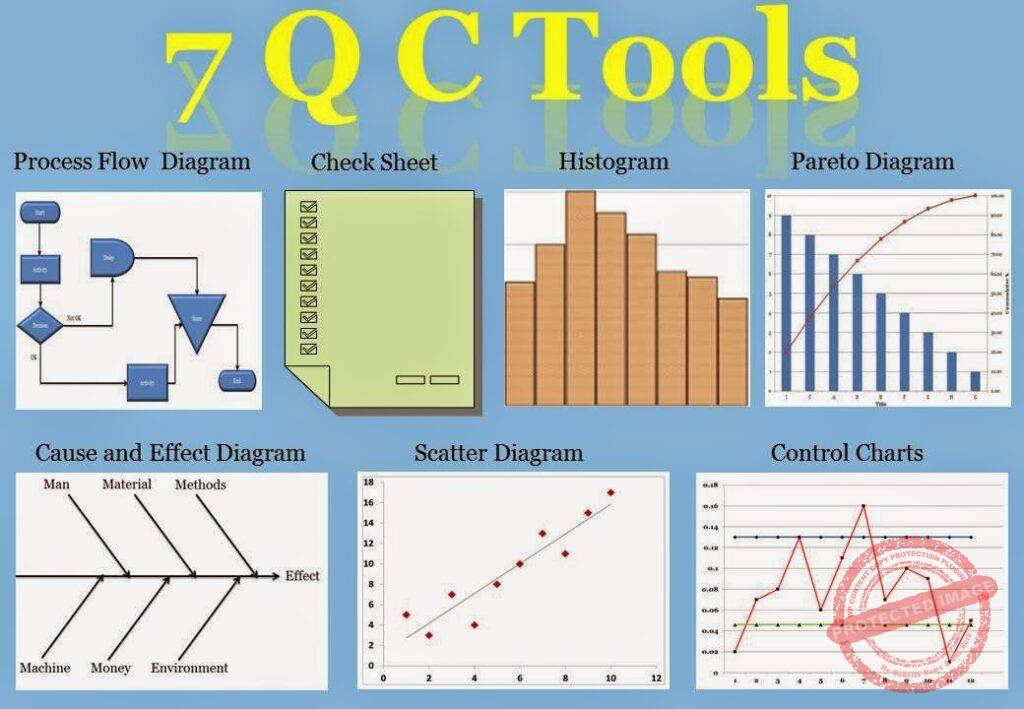
7 QC Tools Histogram
Histogram in Six Sigma: A Practical Guide to Understanding Process Behavior and Data Distribution
In process improvement, the most dangerous phrase is:
“The average looks fine.”
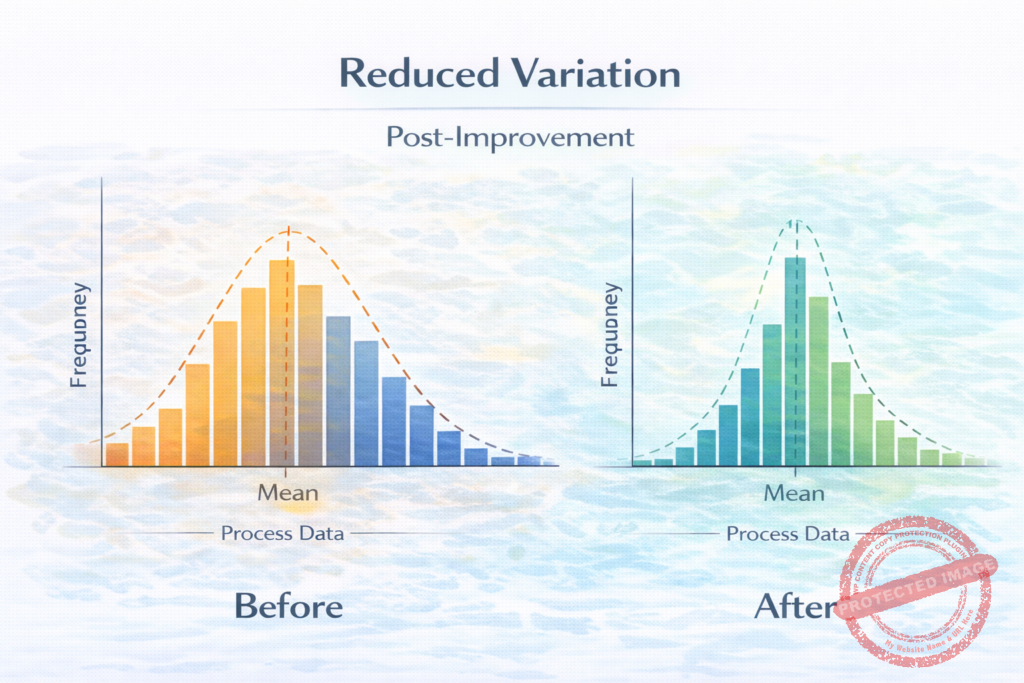
Averages hide problems. Two processes can have the same mean and standard deviation, yet behave completely differently. This is why quality professionals rely on visual tools—and among the 7 QC tools, the Histogram is one of the most powerful for making data behavior visible.
A histogram does not just summarize numbers; it reveals the shape of reality. It helps teams quickly see:
- Where most values cluster (approximate mean)
- How wide the variation is (dispersion)
- Whether the data is symmetric or skewed
- Whether there are outliers
- Whether the process has one peak (unimodal) or multiple peaks (bimodal/multimodal)
In Lean Six Sigma projects—especially in Measure and Analyze phases—histograms provide the first honest look at how a process is performing.
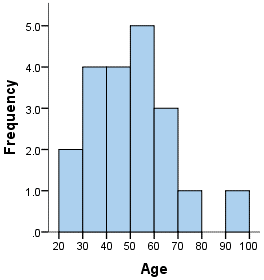
What Is a Histogram (in Simple Terms)?
A histogram is a bar chart that shows how frequently data points fall within defined ranges (called bins or classes). Each bar represents a range of values, and the height of the bar shows how many observations fall into that range.
Unlike a simple bar chart of categories, a histogram is used for continuous data such as:
- Height
- Weight
- Diameter
- Time
- Cost
- Cycle time
- Response time
It is particularly useful to understand:
- Approximate location of the mean
- Spread/variation in data
- Skewness (left or right)
- Presence of outliers
- Distribution type (normal, bimodal, multimodal)
Why Histograms Matter in Lean Six Sigma
In Lean Six Sigma, decisions must be data-driven. Histograms help teams move from assumptions to evidence. They are commonly used in:
- Measure phase: to understand baseline performance
- Analyze phase: to explore patterns and variation
- Control phase: to monitor stability over time (in combination with control charts)
Histograms answer critical questions:
- Is the process centered around the target?
- Is variation too wide?
- Are there hidden sub-populations?
- Are there extreme values (outliers) that need investigation?
By visually displaying distribution, histograms reveal patterns that numeric summaries alone can hide.
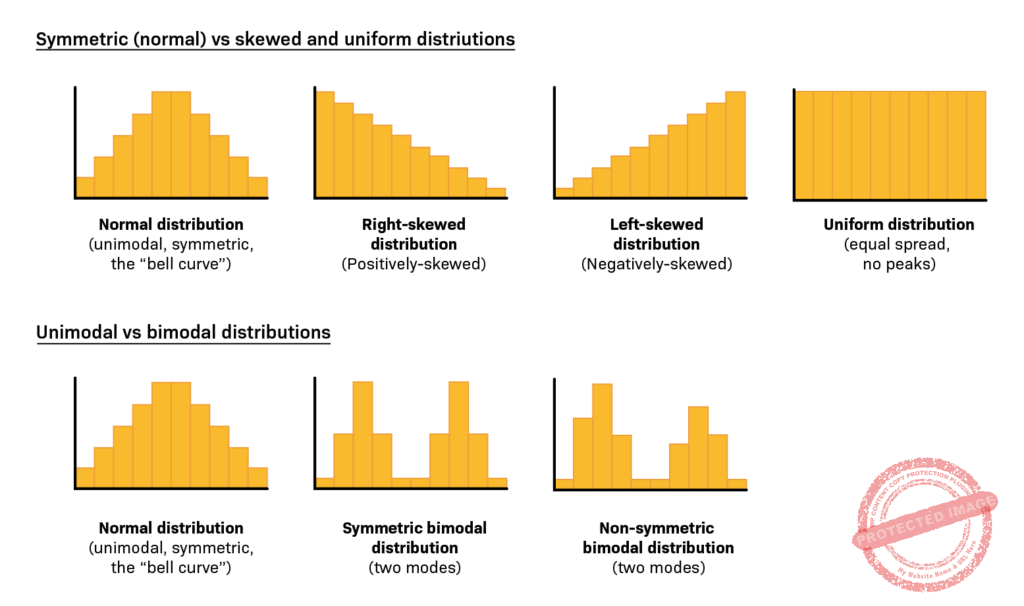
Understanding the Shape of Your Data
Histograms help identify the shape of the distribution, which directly informs how you analyze and improve a process:
1) Normal Distribution (Bell Curve)
- Symmetric around the mean
- Most values cluster in the middle
- Many statistical tools assume normality
2) Skewed Distribution
- Right-skewed: long tail to the right (e.g., response times with a few very long delays)
- Left-skewed: long tail to the left
3) Bimodal or Multimodal
- Two or more peaks
- Often indicates multiple process streams or conditions
- Example: two different teams handling tickets differently
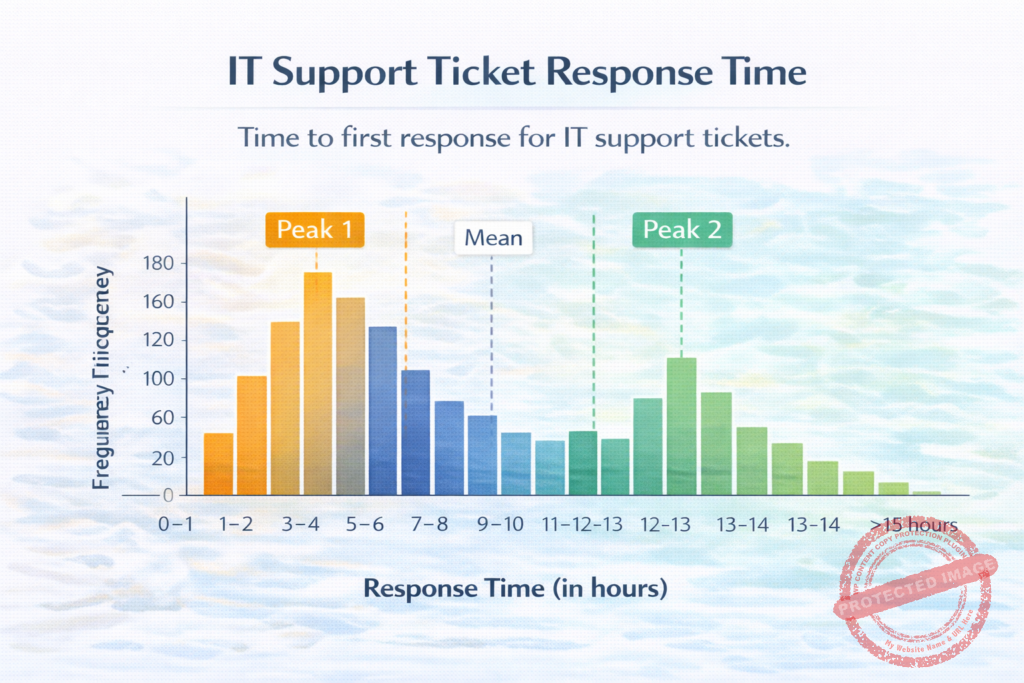
Real-World Example: IT Support Ticket Response Time
Consider an IT support system tracking time to first response for tickets. A histogram shows:
- Highest frequency in the 2–3 hour range
- A longer tail to the right (some tickets take much longer)
- A second smaller peak at 13–14 hours
If you only looked at the mean and standard deviation, you might miss that there are two peaks, indicating two different behaviors—perhaps:
- Tickets handled by different shifts
- Complex tickets routed to a specialized queue
- System downtime during certain hours
Histograms surface these insights immediately and guide root cause analysis.
How to Create a Histogram (Step-by-Step)
- Collect continuous data
Ensure consistent measurement definitions. - Choose bin width
Too few bins hide patterns; too many create noise. - Plot frequencies
Count how many observations fall in each bin. - Review the shape
Look for center, spread, skewness, and peaks. - Overlay targets or specs (optional)
Helps compare performance vs expectations.
Common Mistakes When Using Histograms
- Using histograms for categorical data
- Choosing inappropriate bin sizes
- Interpreting a single histogram without context
- Ignoring multi-modal patterns
- Treating histogram results as final answers (they are diagnostic, not conclusive)
Histogram vs Other 7 QC Tools (Quick Comparison)
Tool | Best Use Case |
Check Sheet | Collect data |
Histogram | Understand distribution & variation |
Pareto | Identify top contributors |
Fishbone | Explore potential causes |
Control Chart | Monitor stability over time |
Scatter Plot | Examine relationships |
Flowchart | Visualize process steps |
How ICEQBS Teaches Histograms (Beyond Theory)
Many programs explain histograms in isolation. ICEQBS focuses on application in real projects:
- Learners build histograms using their own workplace data
- Trainers help interpret shapes and link them to process causes
- Histograms are used alongside Pareto, Fishbone, and hypothesis testing
- Teams learn to move from “pretty charts” to actionable insights
This practical approach ensures professionals don’t just draw histograms—they use them to improve performance.
Final Takeaway: If You Can See Your Data, You Can Improve Your Process
Histograms turn raw numbers into clear stories about how a process behaves. They reveal patterns, variation, and hidden problems that averages alone cannot show. In Six Sigma, histograms are often the first step from opinion to evidence—and from evidence to improvement.
If your team is serious about data-driven excellence, mastering histograms is not optional—it’s foundational.
#7QCTools #Histogram #QualityControl #QualityManagement #LeanSixSigma #SixSigma #ProcessImprovement #StatisticalAnalysis #DataVisualization #ContinuousImprovement #OperationalExcellence #RootCauseAnalysis #QualityImprovement #ProcessOptimization #SPC #ProblemSolving #BusinessExcellence #LeanManagement #Analytics #DMAIC